Canary
In this module we will:
-
Review and understand the Canary Strategy
-
Deploy the Canary Rollout to the production namespace
-
Promote a new image and observe the Canary behavior
-
Replace a manual pause step for testing with an Analysis
Canary Strategy
Canary can be thought of as an advanced version of blue-green. Instead of an abrupt cut-over of live traffic between a current and new revision, traffic is instead gradually increased to the new version in increments, or steps, while simultaneously decreasing the current revision. Like the proverbial canary in the coal mine, the intent is to allow users to access the new version over time and if unexpected problems occur revert back to the previous version.
This process is depicted in the diagram below that shows how traffic is slowly migrated from the current revision to the new revision until the process is completed.

To manage the transition of traffic between stable and canary services, Argo Rollouts supports a variety of traffic management solutions. In the absence of a traffic management solution, Rollouts will manage traffic weight on a best effort basis by adjusting the number of pod replicas associated with each service.
Deploy Canary Rollout
Now we will deploy the canary rollout in the USER_PLACEHOLDER-prod namespace following the same process that we did for the
blue-green in the previous modules. Prior to starting, confirm you are still at the correct path.
cd ~/argo-rollouts-workshop/content/modules/ROOT/examples/Next, let’s explore the manifests that we will be deploying in the ./canary/base folder:
ls ./canary/baseSimilar to previous modules, note we have files for rollout.yaml, services.yaml and routes.yaml which are
our Kubernetes resources for Rollout, Services and Routes respectively. Examining the Rollout first you will
see the following:
cat ./canary/base/rollout.yamlapiVersion: argoproj.io/v1alpha1
kind: Rollout
metadata:
name: rollouts-demo
spec:
replicas: 8
revisionHistoryLimit: 10
selector:
matchLabels:
app: rollouts-demo
template:
metadata:
labels:
app: rollouts-demo
spec:
containers:
- name: rollouts-demo
image: quay.io/openshiftdemos/rollouts-demo:blue
imagePullPolicy: IfNotPresent
ports:
- containerPort: 8080
strategy:
canary:
canaryService: canary
stableService: stable
trafficRouting:
plugins:
argoproj-labs/openshift:
routes:
- stable
steps:
- setWeight: 20
- pause: {}
- setWeight: 40
- pause: {duration: 10s}
- setWeight: 60
- pause: {duration: 10s}
- setWeight: 80
- pause: {duration: 10s}In the rollout manifest we have changed our strategy from blue-green to canary. In the canary strategy, like the blue-green strategy, we specify
the services to use however here they are stable and canary services. Unlike blue-green we explicitly define the promotion process by
specifying a series of discrete steps. At each step we can set the traffic weight between the services, pause or perform an
inline analysis.
For this example, the first step sets the weight to 20% and then the second step pauses indefinitely since no duration is specified. This will allow us to observe the behavior of the canary and validate that it is performing as expected before performing a manual promotion.
Once the manual promotion has been performed, the remaining steps will continue to increase the traffic weight with short pauses between each step. For the pause step the duration can be specified in seconds(s), minutes(m) or hours(h) increments.
| For the purposes of this workshop the pause sequences are deliberately short, it is common to have much longer pauses for more complex applications. |
Finally note the trafficRouting stanza in the canary strategy. This tells Argo Rollouts to use the OpenShift
traffic manager plugin to automatically manage the service weighting between stable and canary services as the steps are
executed. Without this plugin Rollouts would provide best effort for traffic shaping by managing the scaling of
pod replicas between stable and canary.
| The OpenShift traffic manager plugin is included in the OpenShift GitOps distribution of Argo Rollouts and does not need to be installed manually. |
Next let’s look at the Kubernetes services that are defined:
cat ./canary/base/services.yamlapiVersion: v1
kind: Service
metadata:
name: stable
spec:
ports:
- name: http
protocol: TCP
port: 8080
targetPort: 8080
selector:
app: rollouts-demo
---
apiVersion: v1
kind: Service
metadata:
name: canary
spec:
ports:
- name: http
protocol: TCP
port: 8080
targetPort: 8080
selector:
app: rollouts-demoAs expected, services have been defined stable and canary as referenced in the Rollout. With the services out of the way, let’s examine the routes:
cat ./canary/base/routes.yamlapiVersion: route.openshift.io/v1
kind: Route
metadata:
annotations:
haproxy.router.openshift.io/disable_cookies: 'true'
haproxy.router.openshift.io/balance: roundrobin
name: stable
spec:
port:
targetPort: http
tls:
insecureEdgeTerminationPolicy: Redirect
termination: edge
to:
kind: Service
name: stable
weight: 100
alternateBackends:
- kind: Service
name: canary
weight: 0
---
apiVersion: route.openshift.io/v1
kind: Route
metadata:
name: canary
spec:
port:
targetPort: http
tls:
insecureEdgeTerminationPolicy: Redirect
termination: edge
to:
kind: Service
name: canaryHere a route has been defined to match each service that were shown previously. The stable route
defines two services, stable and canary, with a default weighting of 100 and 0 respectively. As
the steps of the canary progress, the OpenShift traffic manager plugin will dynamically modify this
weighting to match the value of the current step.
Finally note for the stable route, OpenShift Route annotations are being used to disable sticky
sessions and use round-robin load balancing. This enables us to properly observe the split of traffic
as Rollouts manage the pod replicas between stable and canary services without interference from OpenShift’s
load balancer.
To deploy the canary rollout, use the following command to process the kustomization:
oc apply -k ./canary/base -n USER_PLACEHOLDER-prodOnce you have run the command we can confirm that the rollout has deployed successfully. Use the following command to ensure that the rollout is up and running and in a Healthy state:
oc argo rollouts get rollout rollouts-demo -n USER_PLACEHOLDER-prodThe console should return something similar to:
Name:            rollouts-demo
Namespace:       USER_PLACEHOLDER-prod
Status:          ✔ Healthy
Strategy:        Canary
  Step:          8/8
  SetWeight:     100
  ActualWeight:  100
Images:          quay.io/openshiftdemos/rollouts-demo:blue (stable)
Replicas:
  Desired:       8
  Current:       8
  Updated:       8
  Ready:         8
  Available:     8

NAME                                       KIND        STATUS     AGE  INFO
⟳ rollouts-demo                            Rollout     ✔ Healthy  24s
└──# revision:1
   └──⧉ rollouts-demo-66d84bcd76           ReplicaSet  ✔ Healthy  24s  stable
      ├──□ rollouts-demo-66d84bcd76-55fd9  Pod         ✔ Running  24s  ready:1/1
      ├──□ rollouts-demo-66d84bcd76-8jh88  Pod         ✔ Running  24s  ready:1/1
      ├──□ rollouts-demo-66d84bcd76-d29gr  Pod         ✔ Running  24s  ready:1/1
      ├──□ rollouts-demo-66d84bcd76-d8vk9  Pod         ✔ Running  24s  ready:1/1
      ├──□ rollouts-demo-66d84bcd76-gqlkq  Pod         ✔ Running  24s  ready:1/1
      ├──□ rollouts-demo-66d84bcd76-hr77t  Pod         ✔ Running  24s  ready:1/1
      ├──□ rollouts-demo-66d84bcd76-rprt7  Pod         ✔ Running  24s  ready:1/1
      └──□ rollouts-demo-66d84bcd76-wkg2s  Pod         ✔ Running  24s  ready:1/1
The command shows additional information about the canary rollout including the number of steps and the weight between services.
Confirm the application is accessible by checking the stable route:
The application is running with blue squares for the current version of the application:
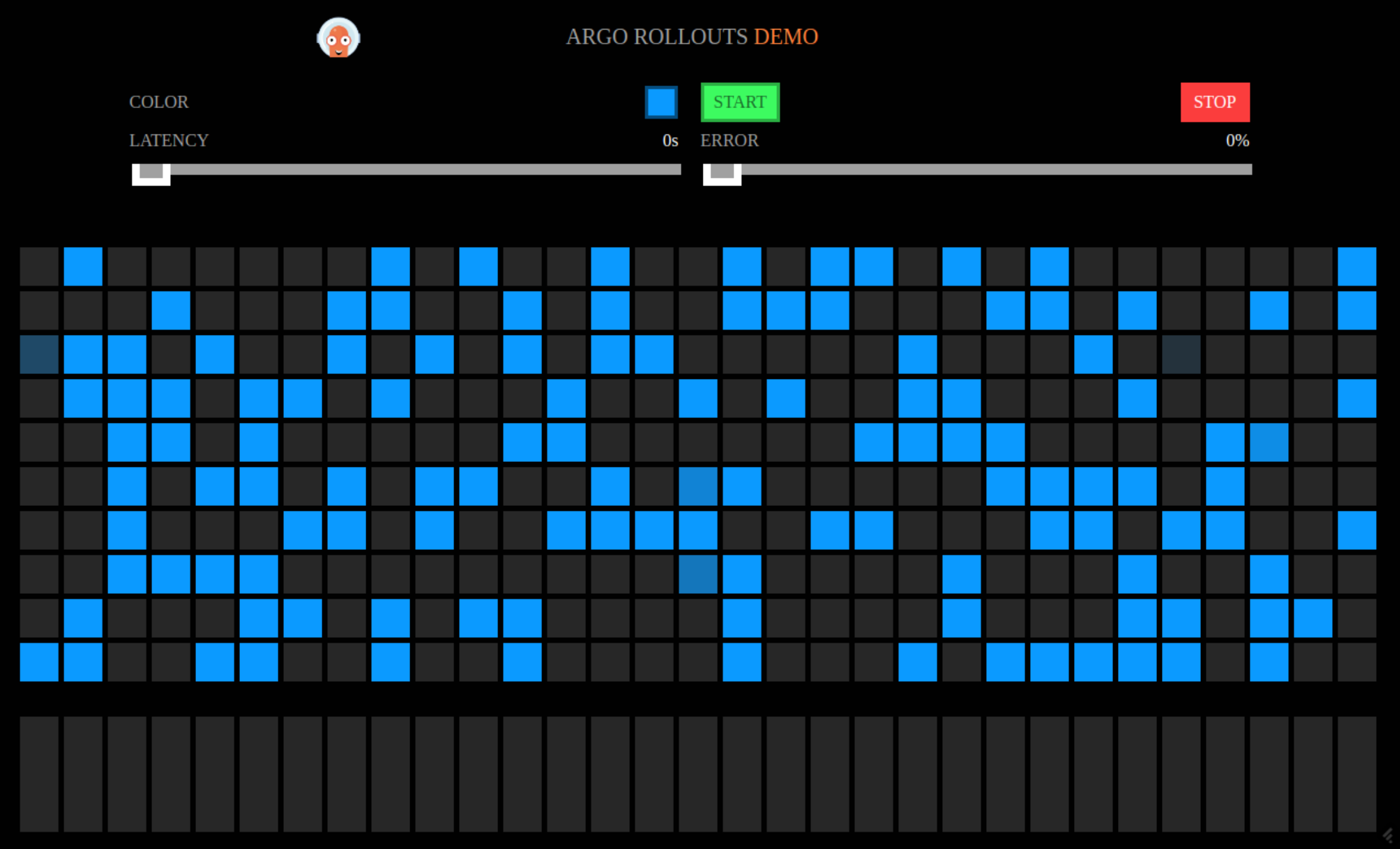
If you go to the Argo Rollouts Dashboard you can see that the dashboard displays the steps that are defined in the rollout.
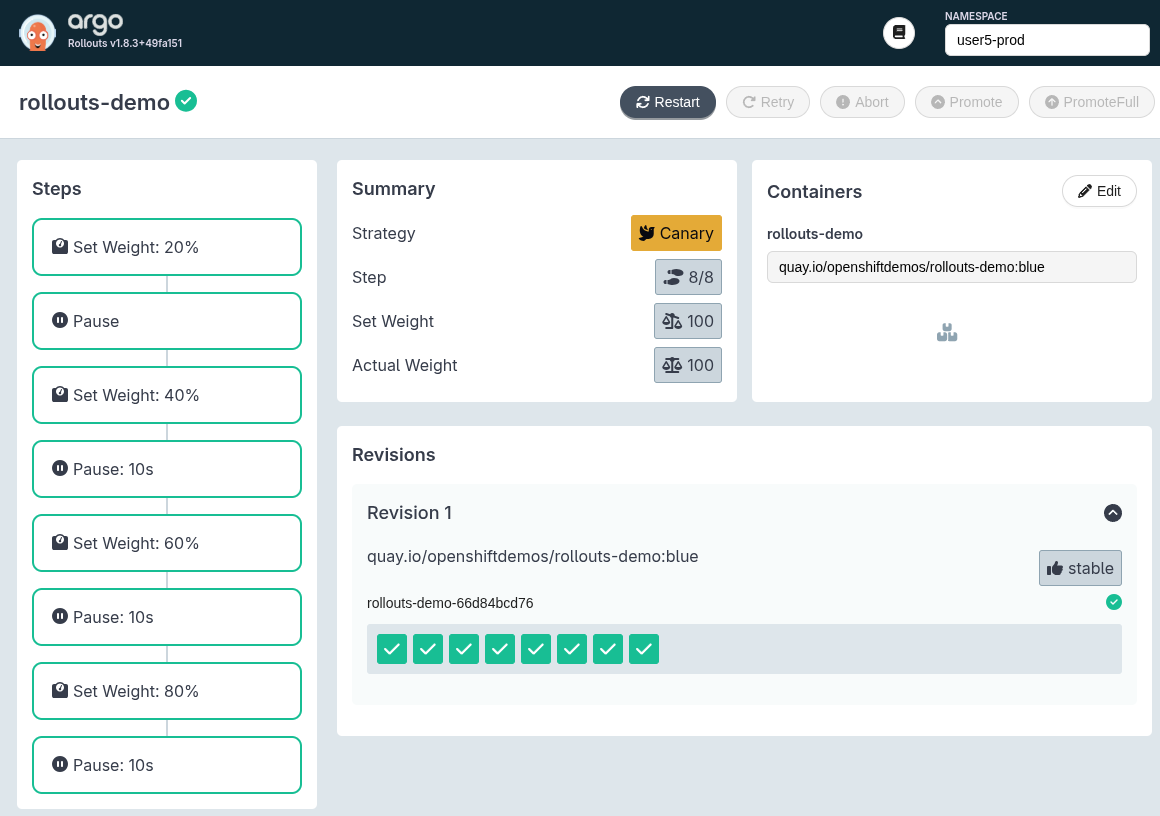
Promote Image
In this section we will promote a new image and observe the behavior of the canary rollout using
the same pipeline that we used previously. As a reminder, the pipeline can be accessed in
the USER_PLACEHOLDER-tools namespace.
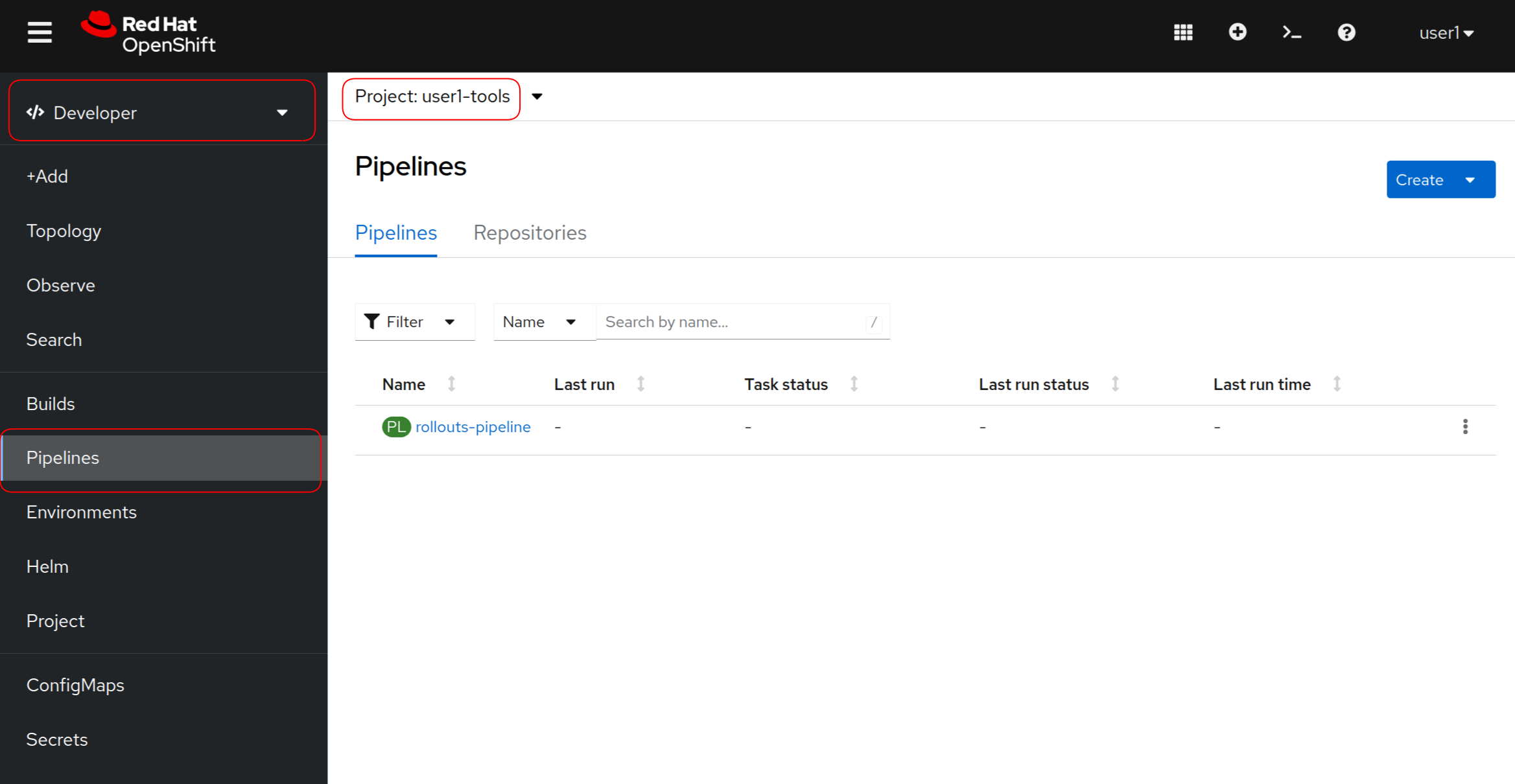
Go ahead and start the pipeline selecting the green image and wait for the pipeline to complete:
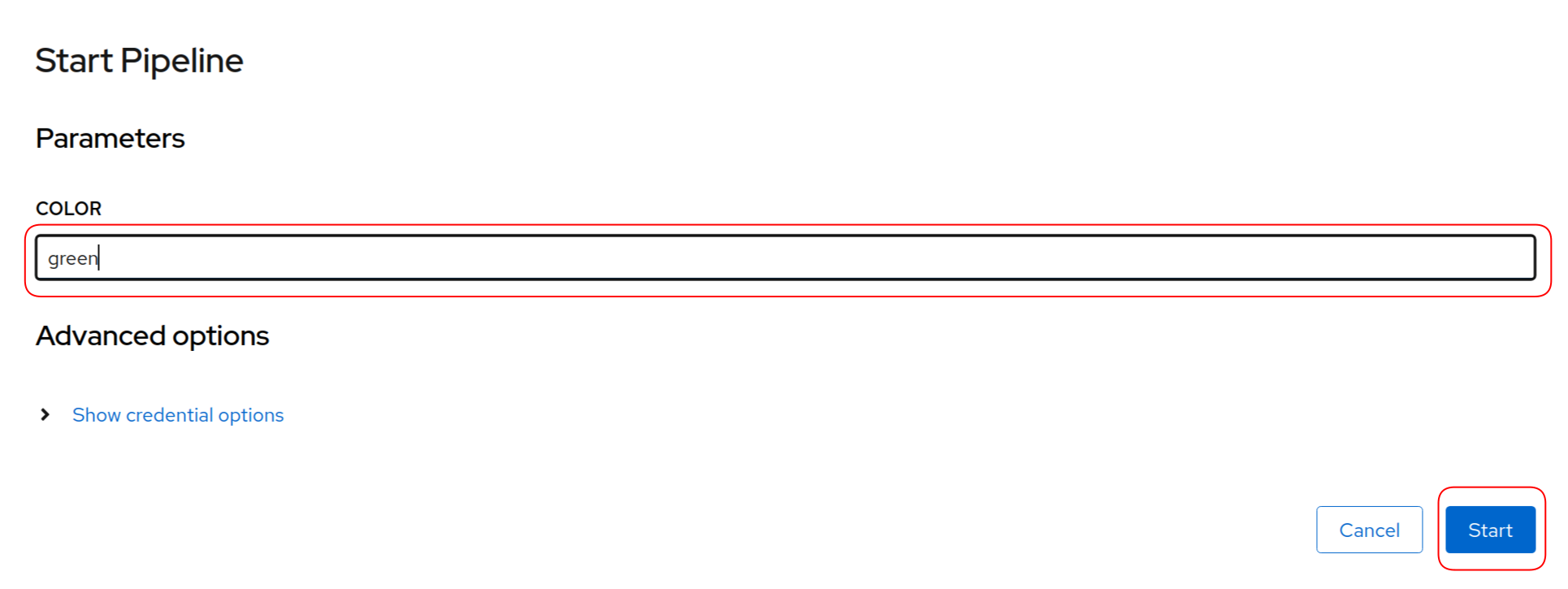
Once the pipeline is complete, run this command to see state of the rollout:
oc argo rollouts get rollout rollouts-demo -n USER_PLACEHOLDER-prodYou should see output similar to the following:
Name:            rollouts-demo
Namespace:       USER_PLACEHOLDER-prod
Status:          ॥ Paused
Message:         CanaryPauseStep
Strategy:        Canary
  Step:          1/8
  SetWeight:     20
  ActualWeight:  20
Images:          quay.io/openshiftdemos/rollouts-demo:blue (stable)
                 quay.io/openshiftdemos/rollouts-demo:green (canary)
Replicas:
  Desired:       8
  Current:       10
  Updated:       2
  Ready:         10
  Available:     10

NAME                                       KIND        STATUS     AGE   INFO
⟳ rollouts-demo                            Rollout     ॥ Paused   2m7s
├──# revision:2
│  └──⧉ rollouts-demo-5999df6cf9           ReplicaSet  ✔ Healthy  58s   canary
│     ├──□ rollouts-demo-5999df6cf9-mqpc4  Pod         ✔ Running  58s   ready:1/1
│     └──□ rollouts-demo-5999df6cf9-nxwt4  Pod         ✔ Running  58s   ready:1/1
└──# revision:1
   └──⧉ rollouts-demo-66d84bcd76           ReplicaSet  ✔ Healthy  2m7s  stable
      ├──□ rollouts-demo-66d84bcd76-5dpb5  Pod         ✔ Running  2m7s  ready:1/1
      ├──□ rollouts-demo-66d84bcd76-9rbtg  Pod         ✔ Running  2m7s  ready:1/1
      ├──□ rollouts-demo-66d84bcd76-cj6ql  Pod         ✔ Running  2m7s  ready:1/1
      ├──□ rollouts-demo-66d84bcd76-dkdpd  Pod         ✔ Running  2m7s  ready:1/1
      ├──□ rollouts-demo-66d84bcd76-fkbpb  Pod         ✔ Running  2m7s  ready:1/1
      ├──□ rollouts-demo-66d84bcd76-j8pfg  Pod         ✔ Running  2m7s  ready:1/1
      ├──□ rollouts-demo-66d84bcd76-wgw5h  Pod         ✔ Running  2m7s  ready:1/1
      └──□ rollouts-demo-66d84bcd76-wvqw9  Pod         ✔ Running  2m7s  ready:1/1
There are a few things of note here. First the status of the Rollout is Paused due
to the pause step with no duration. Second that we have two ReplicaSets, one with 2 pods
and the other with 8 pods corresponding to the preview and stable services respectively.
Recall in our first step that we set a weight of 20% to the canary service.
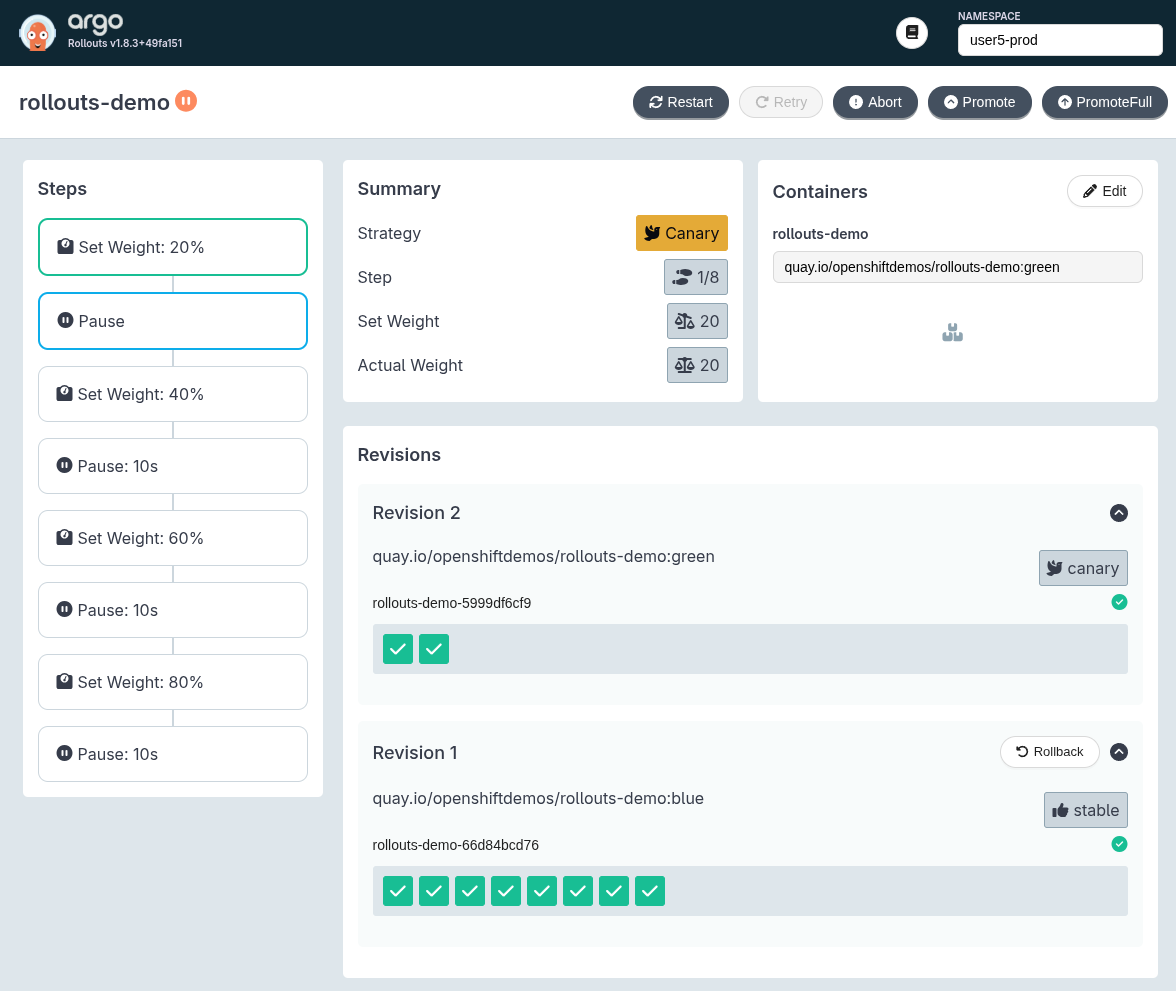
Next visit the Argo Rollouts Dashboard and note that the the rollout is paused on the pause
step:
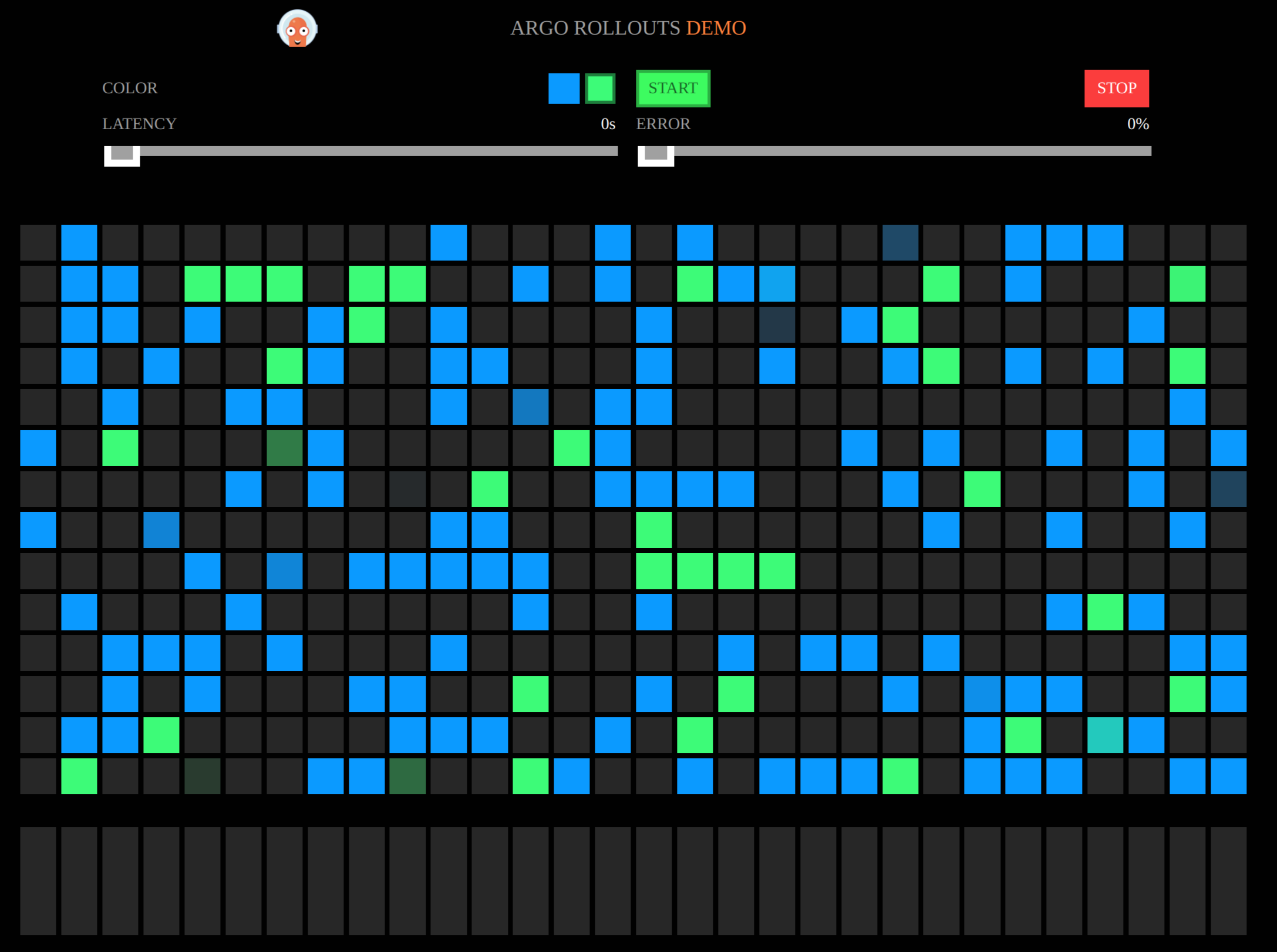
Now let’s see the behavior of the routes, first if you check stable you will see
approximately 20% green squares versus 80% blue squares reflecting the 20% weighting of canary in the first step:
If we view the stable route you will see the 80/20 weighting between stable and canary services has been set by the OpenShift traffic manager:
oc get route stable -n USER_PLACEHOLDER-prod -o yaml | oc neatapiVersion: route.openshift.io/v1
kind: Route
metadata:
annotations:
haproxy.router.openshift.io/balance: roundrobin
haproxy.router.openshift.io/disable_cookies: "true"
openshift.io/host.generated: "true"
name: stable
namespace: user1-prod
spec:
alternateBackends:
- kind: Service
name: canary
weight: 20
host: stable-user1-prod.apps.cluster-5qnlc.5qnlc.sandbox2820.opentlc.com
port:
targetPort: http
tls:
insecureEdgeTerminationPolicy: Redirect
termination: edge
to:
kind: Service
name: stable
weight: 80
wildcardPolicy: NoneNext if we check the canary version of the application we should see only the green version of the application.
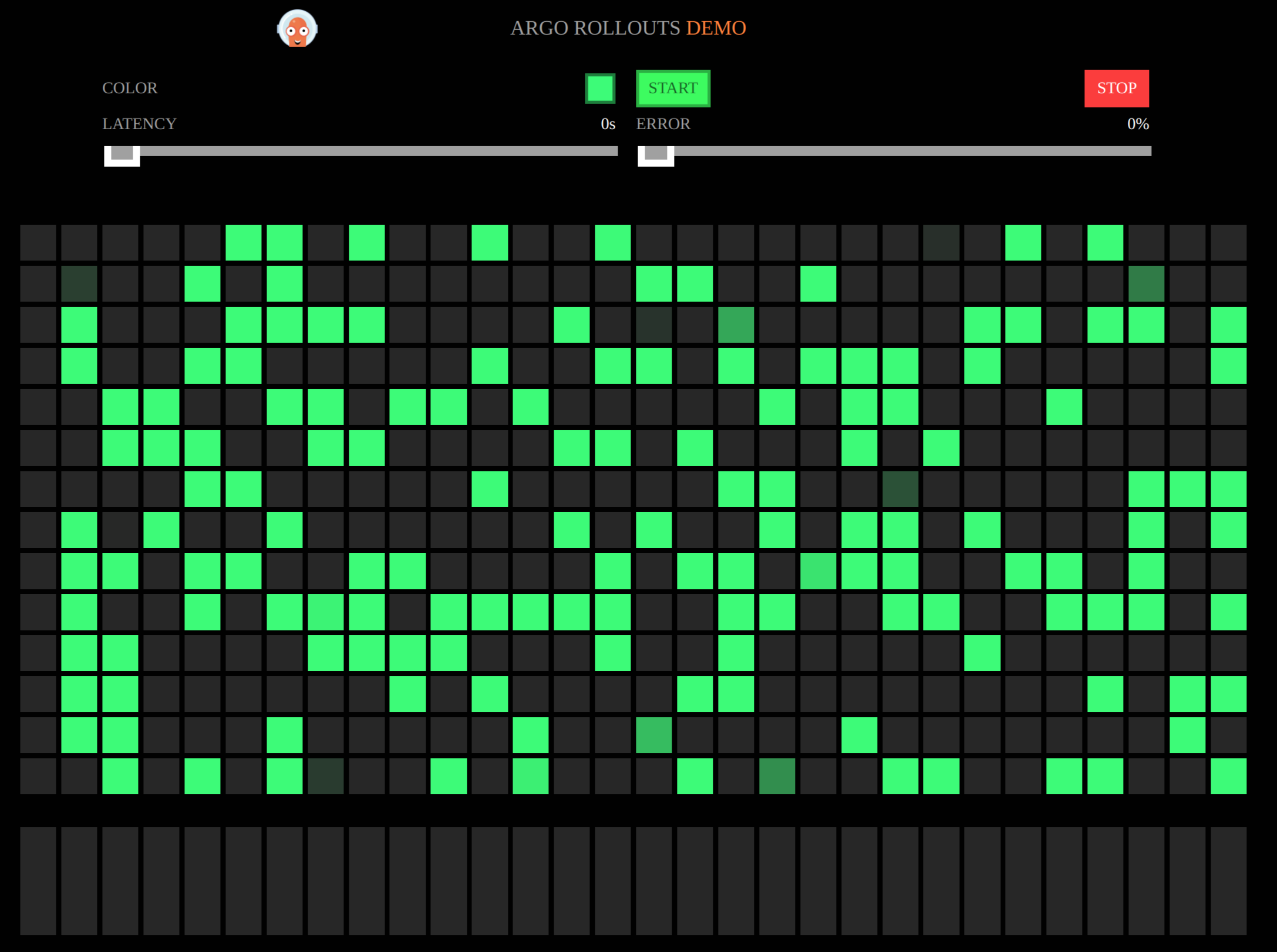
To promote the rollout, you can either promote it from the dashboard using the Promote
button or you can promote it using the following command:
oc argo rollouts promote rollouts-demo -n USER_PLACEHOLDER-prodObserve the dashboard once it has been promoted. The dashboard will show the progression of the steps by highlighting each step as it is being executed. Also note how pods are being added to the new revision as traffic weighting changes.
Prior to moving on to the next section, perform a cleanup to remove the current rollout and reset the Deployment in the dev environment back to blue.
Update the deployment:
oc apply -k ./deploy/base -n USER_PLACEHOLDER-devDelete the current rollout:
oc delete -k ./canary/base -n USER_PLACEHOLDER-prodInline Analysis
In the last section there was a pause step that provided an opportunity to manually test the canary before progressing further. However we can accomplish the same goal by using an analysis. With respect to the canary strategy, an analysis can be performed in the background or as an inline analysis.
A Background Analysis happens asynchronously and does not block the progression of steps, however if the analysis fails it will abort the rollout similar to what we saw in the previous module with the blue-green strategy. In the case of an Inline Analysis, the analysis is performed as a discrete step and will block the progression of the rollout until it completes.
In the following example we will implement an Inline Analysis. The files for this example are in the ./canary-analysis/base folder, to view the list of files
perform an ls as follows:
ls ./canary-analysis/baseNote that the files are identical to the previous example other than the rollout.yaml and the
analysistemplate.yaml file. The AnalysisTemplate being used here is identical to the one
we used in the blue-green example so we will not cover it again here.
The one change in the rollout is that it now has an inline analysis step as per below:
cat ./canary-analysis/base/rollout.yamlapiVersion: argoproj.io/v1alpha1
kind: Rollout
metadata:
name: rollouts-demo
spec:
replicas: 8
revisionHistoryLimit: 10
selector:
matchLabels:
app: rollouts-demo
template:
metadata:
labels:
app: rollouts-demo
spec:
containers:
- name: rollouts-demo
image: quay.io/openshiftdemos/rollouts-demo:blue
imagePullPolicy: IfNotPresent
ports:
- containerPort: 8080
strategy:
canary:
canaryService: canary
stableService: stable
trafficRouting:
plugins:
argoproj-labs/openshift:
routes:
- stable
steps:
- setWeight: 20
- analysis:
templates:
- templateName: smoke-tests
args:
- name: namespace
valueFrom:
fieldRef:
fieldPath: metadata.namespace
- name: route-name
value: canary
- name: route-url
value: canary-%USER%-prod.%SUB_DOMAIN%
- pause: {duration: 10s}
- setWeight: 60
- pause: {duration: 10s}
- setWeight: 80
- pause: {duration: 10s}Notice that the structure of the inline analysis is identical to what was used in the prePromotionAnalysis
in the blue-green rollout with analysis.
To deploy the canary with the inline analysis execute the following command:
kustomize build ./canary-analysis/base | sed "s/%SUB_DOMAIN%/OPENSHIFT_CLUSTER_INGRESS_DOMAIN_PLACEHOLDER/" | sed "s/%USER%/USER_PLACEHOLDER/" | oc apply -n USER_PLACEHOLDER-prod -f -Once the command has been executed, verify that the rollout was deployed:
oc argo rollouts get rollout rollouts-demo -n USER_PLACEHOLDER-prodYou should see output as follows:
Name:            rollouts-demo
Namespace:       USER_PLACEHOLDER-prod
Status:          ✔ Healthy
Strategy:        Canary
  Step:          7/7
  SetWeight:     100
  ActualWeight:  100
Images:          quay.io/openshiftdemos/rollouts-demo:blue (stable)
Replicas:
  Desired:       8
  Current:       8
  Updated:       8
  Ready:         8
  Available:     8

NAME                                       KIND        STATUS     AGE    INFO
⟳ rollouts-demo                            Rollout     ✔ Healthy  4m56s
└──# revision:1
   └──⧉ rollouts-demo-66d84bcd76           ReplicaSet  ✔ Healthy  5s     stable
      ├──□ rollouts-demo-66d84bcd76-c4d6j  Pod         ✔ Running  5s     ready:1/1
      ├──□ rollouts-demo-66d84bcd76-f9qvw  Pod         ✔ Running  5s     ready:1/1
      ├──□ rollouts-demo-66d84bcd76-gp9xp  Pod         ✔ Running  5s     ready:1/1
      ├──□ rollouts-demo-66d84bcd76-gpqwj  Pod         ✔ Running  5s     ready:1/1
      ├──□ rollouts-demo-66d84bcd76-k6dwl  Pod         ✔ Running  5s     ready:1/1
      ├──□ rollouts-demo-66d84bcd76-mlj5q  Pod         ✔ Running  5s     ready:1/1
      ├──□ rollouts-demo-66d84bcd76-wp4tj  Pod         ✔ Running  5s     ready:1/1
      └──□ rollouts-demo-66d84bcd76-z8kr2  Pod         ✔ Running  5s     ready:1/1
Next, examining the Argo Rollouts Dashboard we can see the inline Analysis being shown with the other steps:
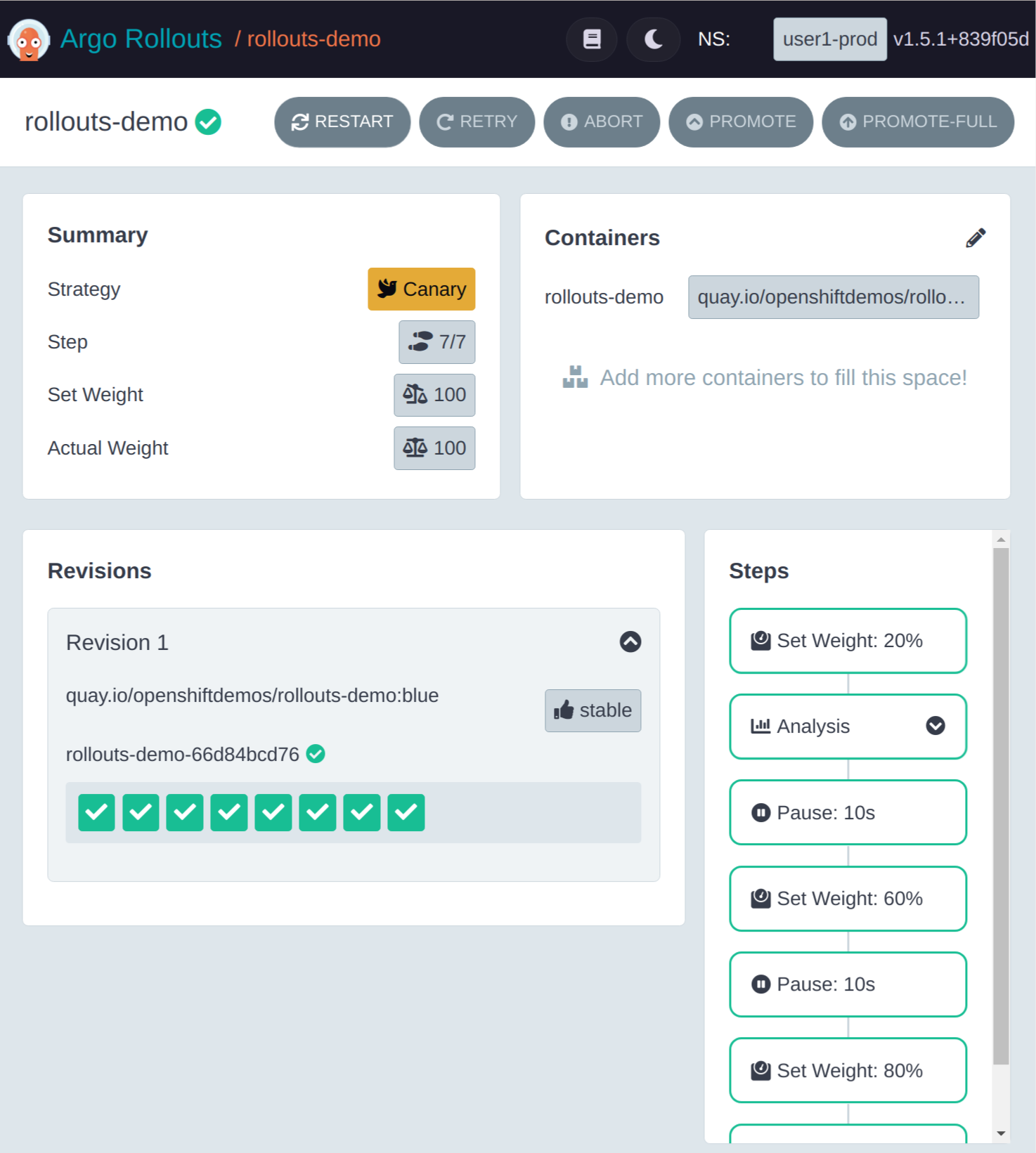
Now that since we no longer have a manual pause step the promotion will complete automatically as long as the analysis step executes successfully.
Let’s do our promotion to the green image, go to the USER_PLACEHOLDER-tools namespace and start the pipeline
again. Once the pipeline has completed, observe the behavior of the canary deployment during the process in
the Argo Rollouts Dashboard.
| If you want to try this multiple times to look at different things feel free to use the pipeline to deploy different colors. Remember the available colors are available .here. |
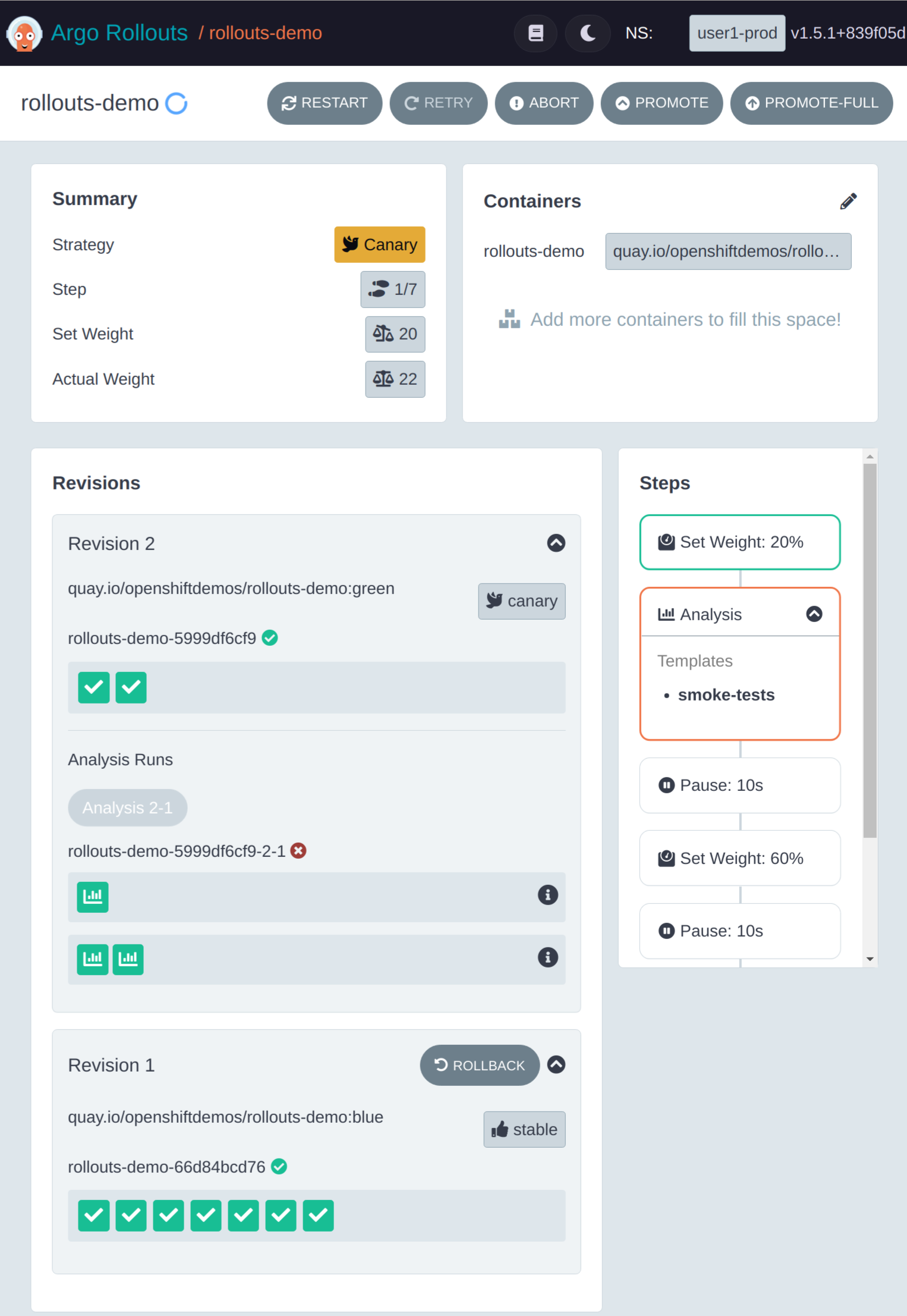
In the dashboard, if you catch it before it completes, you can see the analysis step executing. Similar to what we saw in the previous module, the analysis button will have a blue button while it is executing which then goes green when it has completed successfully or red if it failed.
Here is what the dashboard looks like while the analysis is executing:
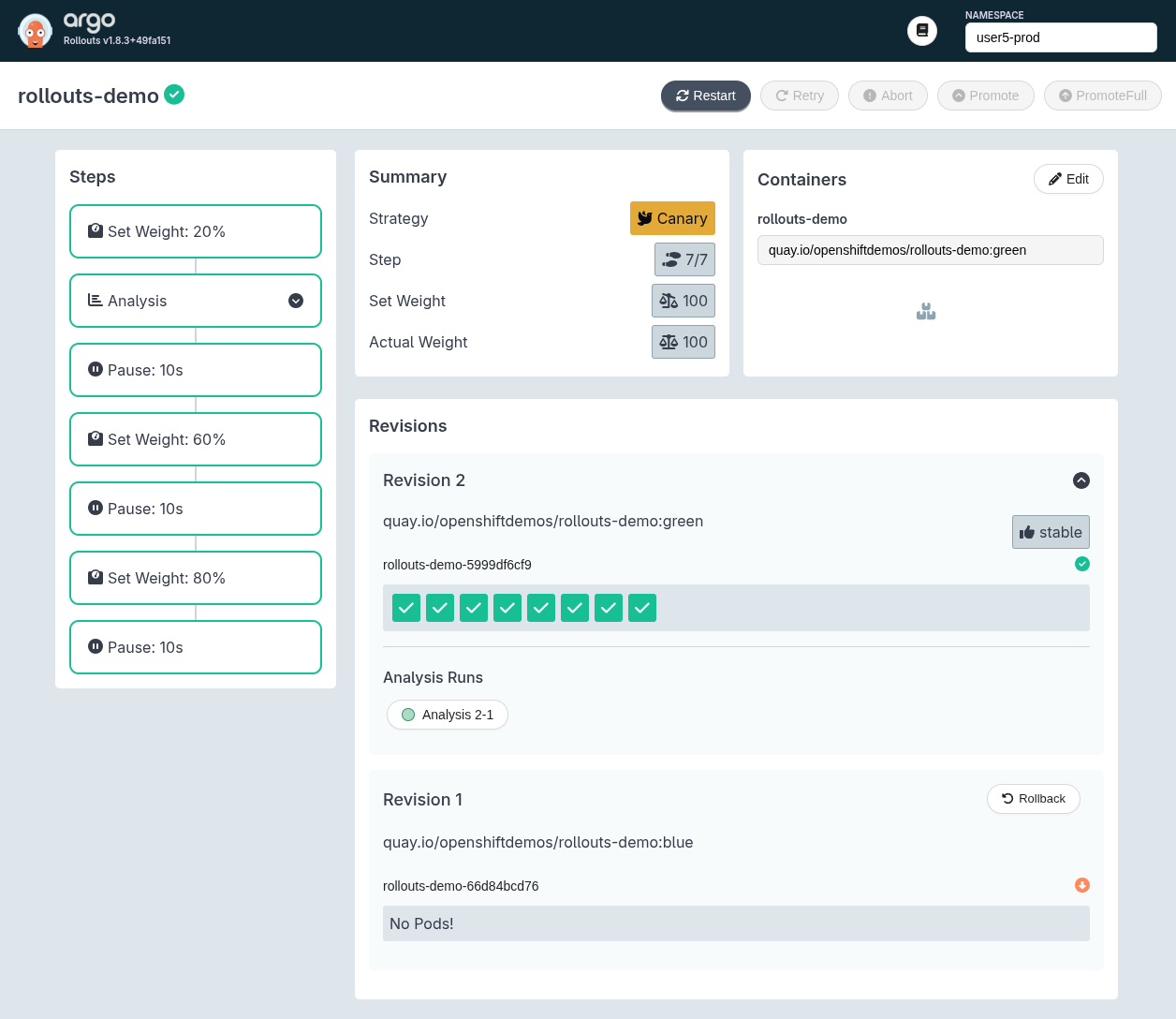
Once the promotion is completed, the dashboard will appear as follows:
In the command line, you can view the rollout using the command:
oc argo rollouts get rollout rollouts-demo -n USER_PLACEHOLDER-prodInformation about the rollout will appear as follows:
Name:            rollouts-demo
Namespace:       USER_PLACEHOLDER-prod
Status:          ✔ Healthy
Strategy:        Canary
  Step:          7/7
  SetWeight:     100
  ActualWeight:  100
Images:          quay.io/openshiftdemos/rollouts-demo:green (stable)
Replicas:
  Desired:       8
  Current:       8
  Updated:       8
  Ready:         8
  Available:     8

NAME                                                        KIND         STATUS        AGE    INFO
⟳ rollouts-demo                                             Rollout      ✔ Healthy     4m19s
├──# revision:2
│  ├──⧉ rollouts-demo-5999df6cf9                            ReplicaSet   ✔ Healthy     3m13s  stable
│  │  ├──□ rollouts-demo-5999df6cf9-g7l75                   Pod          ✔ Running     3m13s  ready:1/1
│  │  ├──□ rollouts-demo-5999df6cf9-zxkss                   Pod          ✔ Running     3m13s  ready:1/1
│  │  ├──□ rollouts-demo-5999df6cf9-mj9m8                   Pod          ✔ Running     80s    ready:1/1
│  │  ├──□ rollouts-demo-5999df6cf9-ph9jk                   Pod          ✔ Running     80s    ready:1/1
│  │  ├──□ rollouts-demo-5999df6cf9-rnvgm                   Pod          ✔ Running     80s    ready:1/1
│  │  ├──□ rollouts-demo-5999df6cf9-btzlf                   Pod          ✔ Running     67s    ready:1/1
│  │  ├──□ rollouts-demo-5999df6cf9-gl8k4                   Pod          ✔ Running     67s    ready:1/1
│  │  └──□ rollouts-demo-5999df6cf9-dlchv                   Pod          ✔ Running     54s    ready:1/1
│  └──α rollouts-demo-5999df6cf9-2-1                        AnalysisRun  ✔ Successful  3m10s  ✔ 5
│     └──⊞ fd0f7c64-c6e4-4447-bbef-5d2f4f62563b.run-load.1  Job          ✔ Successful  3m10s
└──# revision:1
   └──⧉ rollouts-demo-66d84bcd76                            ReplicaSet   • ScaledDown  4m19s
In this module the canary strategy for Argo Rollouts has been reviewed along with how to use an inline analysis step to perform testing of the canary deployment.